Adding custom class files (.cls) to Lyx in Windows Vista / Windows 7 environment
February 22, 2010
When writing for publication, you may be offered a .cls file from the journal in question in which to format a TeX document to their specification. Whilst this works great in TeX, usually by copying the class.cls file in your working directory where all your .tex files reside and adding \documentclass{class} in the preamble (before \begin{document}), using these custom classes isn’t so straightforward in Lyx, so I’ll describe the steps required. I’m using the eethesis.cls class file as an example, which you can obtain from http://www.latex-site.info/. This class file aids in the presentation of a thesis or progress report which meets the requirements of formatting at the University Of Birmingham, UK.
There are a couple of posts I ran across which deal with this specific issue, here and here. None were specific to Windows Vista/Windows 7, so I’ll deal with that here. This assumes version 2.8 of Miktex and version 1.6 of Lyx. If you are using an earlier or later versions, replace with the correct version numbers where I’ve used them.
- Get a copy of the class file, and copy it into a folder with the same name into
C:\Users\_your_user_name_\AppData\Roaming\MiKTeX\2.8\tex\latex. So, foreethesis.cls, you should have a folder calledeethesiswithinC:\Users\_your_user_name_\AppData\Roaming\MiKTeX\2.8\tex\latex. This is Windows Vista / Windows 7 specific, you will soon see why… - Create a new file and paste the following into it:
#% Do not delete the line below; configure depends on this# \\DeclareLaTeXClass\[xxx\]{article (xxx)}# Input general definitionsInput stdclass.inc
replacing xxx with the class name (without the .cls extension). In my case, xxx is eethesis, and the code above becomes:
#% Do not delete the line below; configure depends on this# \\DeclareLaTeXClass\[eethesis\]{article (eethesis)}# Input general definitionsInput stdclass.inc
Thanks goes out to http://wastedmonkeys.com/2007/09/27/adding-a-new-class-in-lyx-windows for this.
- Save this file to
C:\Program Files\LyX16\Resources\layouts, naming iteethesis.layout. - In a command prompt (type
cmdin start menu), typetexhash. What you will now see it doing is iterating through several folders for new classes, one of which (C:\Users\_your_user_name_\AppData\Roaming\MiKTeX\2.8\) is where we copied theeethesis.clsclass file into. - Within Lyx, hit Tools > Reconfigure, then restart Lyx.
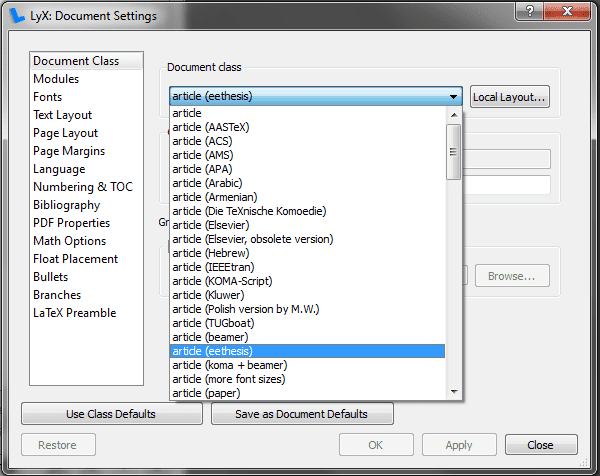
- Open a document and click Document > Settings. Click on ‘Document Class’, expand the drop down menu and you should see ‘
article (xxx)’ is visible, and usable, (like below) within the drop down menu.