Getting O2 Mobile Broadband (HUAWEI E160 adapter) to work in Windows 7
by Paul Kiddie • January 22, 2010 • mobile broadband, o2, windows 7 • 19 Comments
I’ve just picked up an PAYG mobile broadband package from O2 with a HUAWEI Mobile Connect E160 USB stick. Expecting an effortless install I inserted the USB stick, ran the setup and got to the O2 Connection Manager menu, but the cellular network connection ‘O2-UK’ was missing. This was even after running “Install the USB modem” within the O2 Connection manager.
Looking around there seems to be some issues getting the thing up and running with Windows 7 and after digging around a bit I managed to get it up and running on both 32-bit and 64-bit installs after a bit of tooing and froing.
If you are having issues with the O2 Connection Manager even after going through the Windows 7 specific instructions at http://broadband.o2.co.uk/win7upgrade/huawei.jsp, especially where it successfully installs but you are unable to see the “O2-UK” access point in the menu, like in the image below, or it just lists your wifi access points, then try this out but with your own responsibility, YMMV. I got the dongle to work on 2/3 machines by following this procedure, the other one required some more indepth investigation.
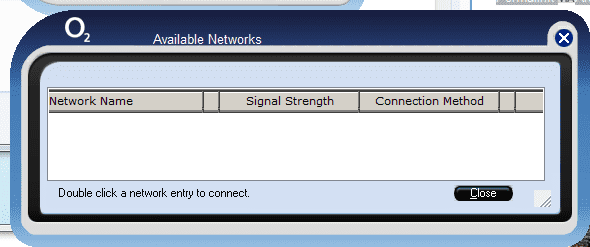
With the USB dongle out:
1. Download the latest ‘O2 Connection Manager’ software from http://broadband.o2.co.uk/win7upgrade/huawei.jsp – but don’t run it.
2. Uninstall any old versions of the O2 Connection Manager by typing “Remove Programs” in Start menu search bar and double click O2 Connection Manager.
3. Restart your PC.
4. Install latest O2 Connection Manager software you downloaded from step 1.
Now, insert the dongle:
5. You should hear two dings from detected devices – if you hear any more then your probably in luck.
6. Open O2 Connection Manager, give it a minute and see if O2-UK pops up, if so great and you can stop reading from this point. If not, then we need to do some extra work, so close O2 Connection Manager.
7. If you are using Windows 7 x64, open an Explorer window to C:\Program Files (x86)\O2CM-CE\O2 Connection Manager\TDW\253\Driver, otherwise if you are using Windows 7 32-bit, open an explorer window to C:\Program Files\O2CM-CE\O2 Connection Manager\TDW\253\Driver.
8. Type “Device Manager” into start menu, click View->Devices by connection and expand each of your USB Host Controllers until you find USB Mass Storage device, underneath which is the Huawei Mass Storage USB Device. Remove the USB Mass Storage device entry by right clicking->Uninstall. Make sure its the USB Mass Storage device (the one I’ve selected), and not the Host Controller or hub you are removing!
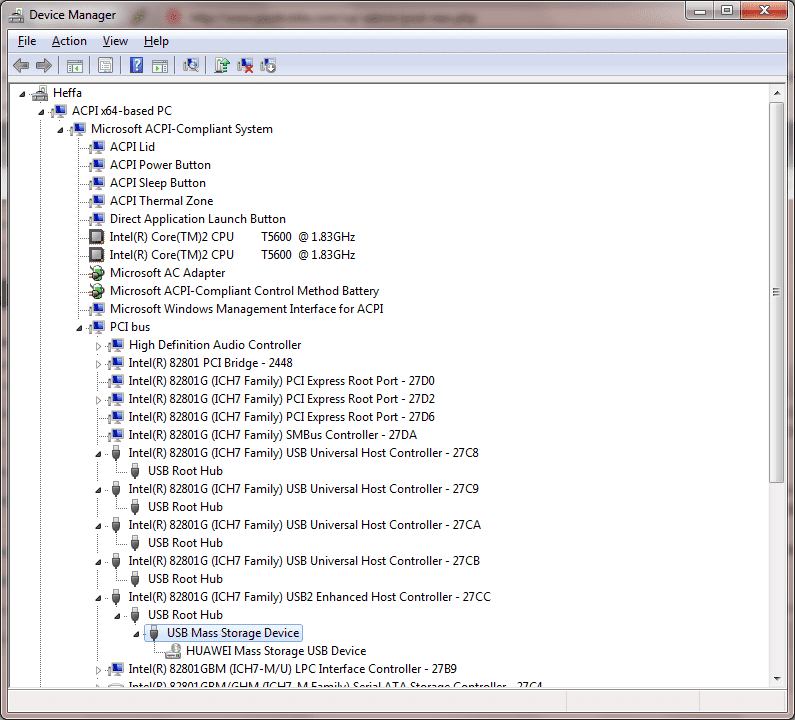
9. Now, go back to that open explorer window, and double click on DriverSetup.exe. It doesn’t pop up any windows or anything but you should get a few dings from newly detected devices within 30 seconds or so, this corresponds to the mass storage as well as the modem portion of the dongle. Check back at the Device Manager to see if you get something that looks like this:
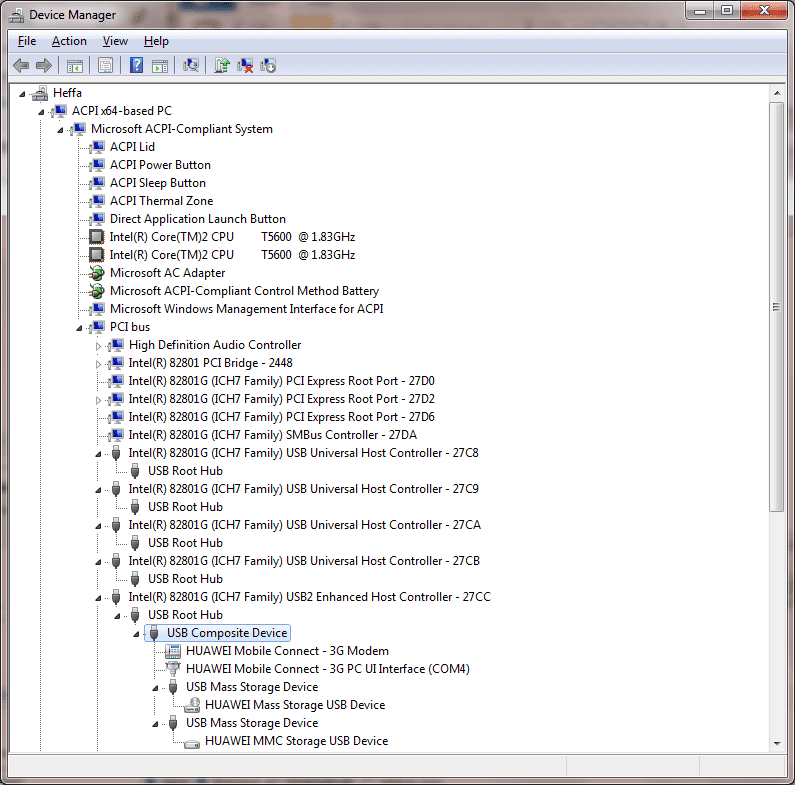
Unfortunately, if its just the two dings and you see just the USB Mass storage device on Device Manager (like the first picture) then this procedure hasn’t worked
10. You should be able to re-open O2 Connection Manager, give it a minute or so and “O2-UK” should now pop up as per the O2 user manual.
Bear in mind the whole experience is still a little flaky as if you plug the dongle into another USB port it will simply install as a mass storage device – so remember which USB port you put the dongle into and make sure you put it in that port whenever you want to use mobile broadband! Hopefully O2 can sort these numerous issues out stat!
Its work, thanks Paul.
Can I just share that I tried this method and was unsuccessful. In the end I changed the driver for the “USB Mass Storage Device” above the HUAWEI to a “USB Composite Device” manually and as a result all the other necessary components were detected.
Thanks for sharing your technique James, I’ll have to give it a go, and it’ll be good to share for others that stumble upon the blog.
James, thanks for the tip about changing it from “USB Mass Storage Device” to “USB Composite Device”! That did the trick for me
(on Win 7 64bit)
Paul, thanks for this, but your standard fix didn’t work for me. James, your additional step worked a treat. Thanks very much. Worked for me in 32 bit Win 7.
Took me a while to figure it out though. I did the following:
Right click on USB Root Hub and select “update driver software”. Then click “browse my computer for driver software”. Then click “let me pick from a list of device drivers on my computer”. Untick “show compatible hardware”. Select “standard usb host controller” from the left list, then “USB composite device” from the right list. Click next and go through the warnings, and the modem should install.
Thank you!!!
Install is OK with win 7, thanks
Thanks for this… I was lost without your help
Thanks for posting that. I have a new machine on its way
and that’s the only way I can connect to the internet, in all
places, a capital city in Germany. I just hope that O2 out there
isn’t a scam like it is here with the sticks: first, we got our
stick through Tchibo and it’s prepaid, with no contract. Month
after month, we were capped at 2.5 gigs and supposed to be getting
a still pitiful 5gb. We finally called, they claimed they saw no
problem, but then there was magically no 5gb limit anymore. The
other scam that still persists for all I know with this system is
that after the 5gb, it’s supposed to go to 64k. The problem is the
throughput goes to zero constantly and one has to disconnect and
reconnect over and over. It’s truly pathetic the scams that go on
in Germany. So far, no resolution for that second problem.
Thanks for this, it even worked with my T mobile E160
dongle on Windows 7 32bit using T Mobile web n walk software, the
folder directories are a little different. i just uninstalled the
mass storage in device manager, ran driver setup.exe, works fine
now.
Thanks matey, until I cam across your post I was pulling my hair out
Thanks all, I had to try this a couple of times and hit scan for hardware changes on some unrecognised composite devices but it got there eventually! Much appreciated.
Many Thanks guys, followed Ed’s post and it now works!!!!!!!!!!!
Cannot thank you enough, was having to dual boot XP when I was out the office
Greatly appreciated
Martin
If it’s any help, just downloaded the driver from the O2 website today, and followed their instructions. Sure enough, after inserting the dongle, nothing happened, and three instances of software not installed appeared. Being a firm beliver in switch off and have a cup of tea, and a read of Paul’s excellent instructions, I restarted, and voila it worked without any help from me! – I’m running Windows 7 Professional 64bit – dare I venture that O2 have finally sorted this out?
Sire, you are a genius. Many thanks you have just saved me some hours of fruitless fumbling.
Many thanks, Paul.
Have been struggling like mad with my O2 E160 since moving to W7 64b. Use an unlocked one every year in south Africa with local Vodacom, really essential.
Followed your complete procedure and Bingo! Finds both my O2 and 3Uk sims. just hope SA Vodacom is good too.
Great stuff, Graham
Brilliant, have been struggling with this for a while and I’m all sorted again now. Thanks very much! Now all I need to do is stop O2 from disconnecting my SIM if I don’t use it for six months…
Thanks for this Paul – and thanks also to Ed (comment 5). I needed all this info to persuade 64-bit win7 to install the driver properly.
wow, awesome … I was fiddling with that for hours – thanks to Paul, James and Ed who rescued my day.